# What is Scalp Empire
Scalp Empire is a project aiming to provide our holders with most of the tools needed for making profitable NFT trades on Solana network.\\

Analytical tools, Sniping bots, listing features are much needed tools for making successful NFT trades.
We are a small team of experienced developers and enthusiastic traders that are constantly improving the set of tools the app provides with new features based on our own experience and feedback from our community.
In here, you will find tutorials to accompany you while using our app, as well as advices on how to better your scalping game.
Nestor - Scalp Empire Nestor Collection is all about Nestor's journey in-between realms. From Midgar to Asgard, you will see him evolve in different shapes, colors, and universes ...

# How to get acces?
In order to access our collection of tools you need to **hold one Nestor in the wallet** that you connect with.
**1 Nestor gives you full access, doesn't matter its color, coin, facial hair or accesories.**
Please check **🔗丨**[**official-links**](https://discord.gg/scalpempire) for a list of marketplaces where you can grab one or directly click on [**Hyperspace**](https://hyperspace.xyz/), [**Magic Eden**](https://magiceden.io/marketplace/scalp_empire_nestor_edition) or [Tensor](https://www.tensor.trade/trade/scalp_empire_nestor_edition).\\
# I have a Nestor, now what?
**Congratulations & welcome to our community!**
First step, finish reading this documentation. It will help you understand our tool.
Second, if you didn't yet, join our [**discord server**](https://discord.gg/scalpempire)**.** Do not forget to [**accept the rules**](https://discord.gg/scalpempire) and verify on [#matrica](https://discord.com/channels/891444210731991130/1177271638711074896) in order to have access to dedicated channels.
Last but not least, access [**Scalp Empire**](https://www.scalp-empire.com/)**,** connect your wallet (Ledger, Solflare or Phantom) and start your adventure in Nestor's in-between realms.

# Check your settings
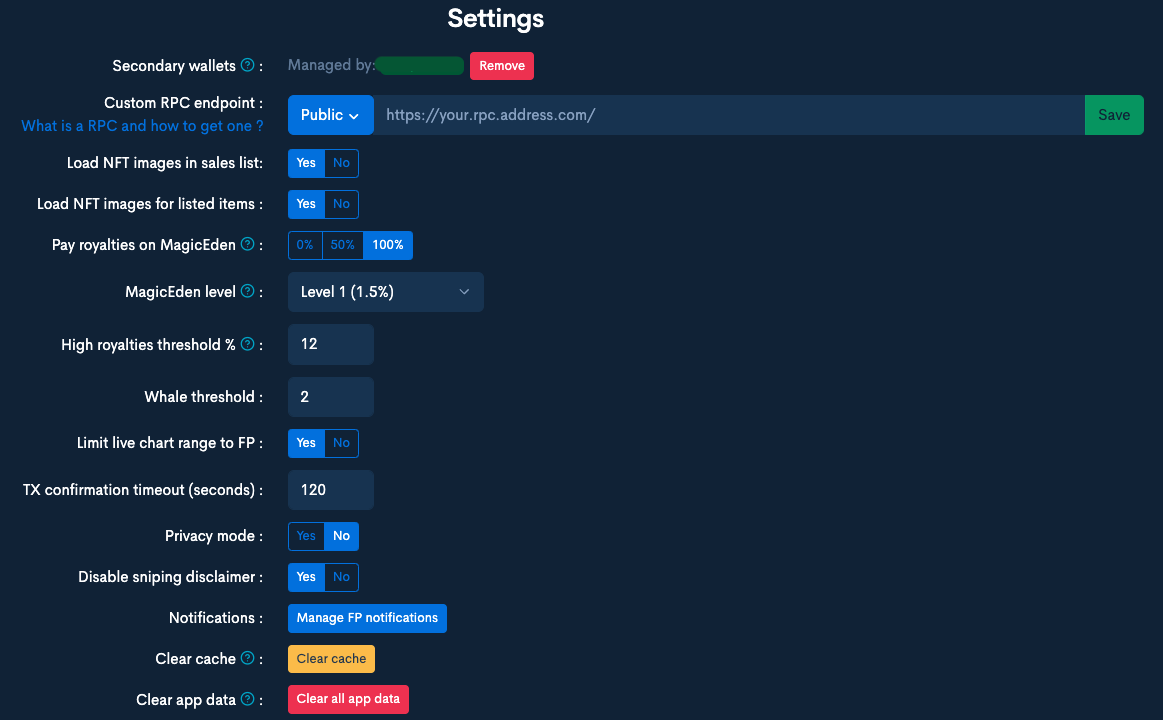
### Secondary wallets
Setting a secondary wallet allows you to keep Nestor secure in your main wallet while using a different burner wallet for sniping.\
After setting a secondary wallet you will be able to use it without requiring a Nestor or the Subscription pass to be present in that wallet.\
You **will not be able to use your main wallet for auto-buying, floor sweeping and bidding** while having secondary wallets setup.\
**You will be asked to sign a transaction to confirm ownership of your main wallet. This transaction is not sent to the network.**\
**Nestor holder can set 2 secondary wallets and Collabs / Subscription pass holders 1 secondary wallet.**\
You can find the steps on how to do that in "[**Set up secondary wallets**"](/i-have-a-nestor-now-what/set-up-secondary-wallets) section.
### Custom RPC
#### What is a custom RPC server?
A RPC (Remote Procedure Call) server is your proxy to the Solana blockchain. The RPC server is used to query on-chain data and also send transactions to the blockchain.\
\
When running a Solana dApp (Scalp Empire for example), RPC requests are used to request data from the Solana node cluster. We name this the **backend RPCs.** They are bringing data (collection details, creators, owners, transactions, etc) from the chain . We have 2 RPCs of this kind (1 main and 1 for backup) that are configured and managed by us in Scalp Empire tool.\
Then, specially designed RPC nodes (sometimes called **RPC endpoints**) process RPC requests made by a decentralized application (dApp), run transactions through the network’s validator protocol, and send back the data the dApp asked for (buy, bid transactions for example) . These are the RPCs that **you can configure in Scalp Empire Settings** tab.\
\
A list of the most popular free RPC is available in the **drop down list.**
You can setup your own custom RPC server here. Just paste the link and hit save.
**RPC is tested for a few basic calls before saving. This will allow detecting bad nodes that don't support all the calls SE does and prevent it from functioning properly.**\
\*\*\*\*\
\*\*\*\*Remember, scalping success can be influenced also by your internet speed and pc performance, does not depend only on the RPC. So there's no point getting a top private RPC if your local setup has some faults :). Also, it's important to choose an endpoint RPC that is appropriate to your location.
**What to do if your RPC only supports HTTP protocol (and not HTTPS)?**
If your RPC does not support Secure HTTP connections, you need to add an exception in your browser for it to work with Scalp (this is a security limitation of the browsers). Please see here how to do that: .
### **Load NFT images in Sales List**
This option allows you to enable/disable the image display of NFTs in the live big activity section, above the sales list.
### Load NFT images for listed items
Displaying images can often affect loading time / performance. If you are not interested in seeing them just click No.\
Also, a separate setting for disabling images is available on listing section - small icon on the table header.
### Pay royalties on MagicEden
Set the percentage of the creator royalties you want to pay when purchasing from Magic Eden.\
You can choose from 0%, 50% and 100%.\
The **default option is set at 0%.**
### MagicEden level
You can set up here the level that you have on Magic Eden which is used in applying discounts on ME fees.
### High Royalties Threshold
This setting will allow you to set the acceptable royalties threshold that a NFT can have. For example: you set the royalties threshold at 7%. All NFTs that have >7% royalties will be marked in Sniping / Unified view (live feed section) on each listing with the royalties %. This items will be skipped / cannot be bought using manual or auto-buy.
%20\(1\).png?alt=media)
### **Whale treshold**
We all know that whales exists :smile:. In this setting, you can set the amount of times that a wallet is used, it will be highlighted and therefore, you can deduce if we're talking about a whale or just a regular buyer/seller.
### Limit live chart range to FP
For better visibility of the floor price evolution, the live chart is now constrained vertically to the FP range so that very high/low sales no longer auto-adjust the vertical axis making the FP line almost flat and difficult to follow. You can disable this behaviour here, if needed.
### TX confirmation timeout (seconds)
We have seen a lot of TX confirmation timeouts lately and are under the suspicion that transactions still confirm after the initial 1 minute timeout (as noted by some users that got more purchases than the amount they setup). Even thought the Solana metrics shows that 99% of the transactions confirm in under 30s, this does not account for the fact that most TX are probably simple transactions (like transferring SOL or NFTs between wallets) and not program generated (like marketplace purchases or minting etc.).\
So, we have upped the default timeout from 1 min to 2 min in hope that we get a response from the Solana network in that time so that we know if the TX was successful or not and prevent purchasing additional NFTs.\
You can still configure this in Settings between 60 and 300 seconds (5 min).
### Privacy mode
Privacy mode enables you to hide your wallet balance and the totals in Portfolio.\
Useful for those who stream or want to takes screenshots.
### Disable sniping disclaimer
With this setting you can deactivate the disclaimer that is by default configured to pop evry time you access a new collection.
### Notifications - Manage FP Notifications
%20\(2\).png?alt=media)
Besides managing the notification from each collection page or from the watchlist, you can activate/deactivate/delete them in the Settings tab also.
### Clear Cache
This command allows **clearing cache only** without removing watchlist items, main wallet and other settings.\
If you have problems searching or viewing collections, this is the first action you must take.\
**WARNING**: if you have not cleared app data in a long time, it will take a few minutes to clear all cached items. In the near future an automatic cache cleaning will be implemented.
### Clear App data
The wonder button that clears your app data and restores default settings.\
Clear app data will remove all the existing settings stored in your browser: watchlisted collections, FP alerts, custom RPC.\
Only use if clearing cache does not work.
### Check your PC time
Check on if your PC has the right updated time or not. This can be a solution if Does not load / No data is shown / Collection not scanned.
# Set up secondary wallets
In order to access Scalp Empire tools, you must have your Nestor stored in the connected wallet.\
Setting a secondary wallet allows you to keep Nestor secure in your main wallet while using a different burner wallet for sniping.\
After setting a secondary wallet you will be able to use it without requiring a Nestor to be present in that wallet.
{% hint style="warning" %}
You **will not be able to use your main wallet for auto-buying, floor sweeping and bidding** while having secondary wallets setup.
{% endhint %}
{% hint style="info" %}
**You will be asked to sign a transaction to confirm ownership of your main wallet. This transaction is not sent to the network.**
{% endhint %}
With this new functionality, you can keep your assets secure, in a Ledger or another wallet and still use a wallet that has auto-approve feature (like [**Solflare**](/i-have-a-nestor-now-what/prepare-wallet-for-auto-buy/auto-approve-solflare)).\
\
**This is only valid for all devices where you will connect to Scalp with that wallet.**
How to use Secondary wallets feature:
1. Connect to the app with the wallet holding Nestor or the Subscription pass/collab NFT (like your Ledger)\

2. Go to Settings and click on **Manage wallets**\\
3. Paste the addresses of the wallets you want to use as secondary and hit Save.\\
3\. Sign the transaction\
\
.png?alt=media)
{% hint style="danger" %}
Signing a trasaction is required to prove ownership of the wallet and also because ledger does not support signing a text message. The transaction is never sent to the network.
{% endhint %}
Now, after setting up the secondary wallets, switch to one of those.\
\

You can now use Scalp Empire using another wallet than the one you have Nestor or the subscription pass in it.
{% hint style="warning" %}
If one of the wallets set as secondary was already set as secondary for another wallet, this will not work. You must remove it from the previous setting.
{% endhint %}
Enjoy!
# Prepare wallet for auto-buy

You can use Auto-buy with manual validation of the transaction or with auto approve.\
If you don't want to approve manually the transaction, you can set auto-approve in your wallet. We reccomend using Solflare or Exodus the only wallets with auto-approve feature at this moment.
Remember, for auto-buy to work, your session must be active (PC running).
# Auto-approve Solflare
Solflare is the safest way to explore Solana. Buy, store, swap tokens & NFTs and access Solana DeFi from web or mobile.
Burner wallets with Auto-approve function are now available to be added to Solflare Extension.\
\
There are few **use cases** to consider while creating a Solflare burner wallet that depend on your current status regarding Solflare usage:
* **you don't have a Solflare wallet** and **you don't want to import other wallets seed phrases.** You must create one - [Create a new Solflare wallet](/i-have-a-nestor-now-what/prepare-wallet-for-auto-buy/auto-approve-solflare/create-a-new-solflare-wallet) and after that [Create burner wallet and setup auto-approve](/i-have-a-nestor-now-what/prepare-wallet-for-auto-buy/auto-approve-solflare/create-burner-wallet-and-setup-auto-approve).
* **you want to import other wallets seed phrase** - [Import from Phantom seed phrase](/i-have-a-nestor-now-what/prepare-wallet-for-auto-buy/auto-approve-solflare/import-from-phantom-seed-phrase) and after that [Create burner wallet and setup auto-approve](/i-have-a-nestor-now-what/prepare-wallet-for-auto-buy/auto-approve-solflare/create-burner-wallet-and-setup-auto-approve)
* **you use Solflare but just for the ledger wallets** - you need to reset Solflare (Settings -> Security -> Log out), [Create a new Solflare wallet](/i-have-a-nestor-now-what/prepare-wallet-for-auto-buy/auto-approve-solflare/create-a-new-solflare-wallet), then [Import Ledger accounts](/i-have-a-nestor-now-what/prepare-wallet-for-auto-buy/auto-approve-solflare/import-ledger-accounts) and after that [Create burner wallet and setup auto-approve](/i-have-a-nestor-now-what/prepare-wallet-for-auto-buy/auto-approve-solflare/create-burner-wallet-and-setup-auto-approve)
* **you already have a Solflare wallet** and you are ready to [Create burner wallet and setup auto-approve](/i-have-a-nestor-now-what/prepare-wallet-for-auto-buy/auto-approve-solflare/create-burner-wallet-and-setup-auto-approve)
# Create a new Solflare wallet
**How to create a fresh new Solflare wallet?**
Go to or on your browser extension webstore and search for Solflare extension. Add it to yor browser or mobile OS and start the configuration.
Choose **"Create a new Solflare wallet"** and follow the steps.
**Save (write down) and confirm** your new seed phrase.\
%20\(1\)%20\(4\).png?alt=media)
Create a **new password for your new wallet,** confirm it and you are ready to go.\
.png?alt=media)
Now you can go to [Create burner wallet and setup auto-approve](/i-have-a-nestor-now-what/prepare-wallet-for-auto-buy/auto-approve-solflare/create-burner-wallet-and-setup-auto-approve) and setup your new burner.
# Import from Phantom seed phrase
If you want to **use your existing wallets and import them into Solflare**, you can do that by selecting the option "**Already have your recovery phrase**"
**Import the seed phrase.**
**Create a new password for your new wallet**, confirm it and you are ready to go.\
.png?alt=media)
Now you can go to [Create burner wallet and setup auto-approve](/i-have-a-nestor-now-what/prepare-wallet-for-auto-buy/auto-approve-solflare/create-burner-wallet-and-setup-auto-approve) and setup your new burner.
# Import Ledger accounts
If you already use Solflare for your Ledger wallets (you just manage them through Solflare without having a dedicated Solflare wallet) you will not have access to the new burner functionality from the same user account without doing some steps:
You must first reset your Solflare wallet by logging out. For that, go to Solflare wallet, Security and click Log out. Before that, make sure that you saved your wallet addresses so it will be easy to recognize them when you will have to import them back.\
\
{% hint style="danger" %}
Be careful! you must do this only if you don't have a Solflare wallet and the only existing wallets you can see are the Solflare ones.
{% endhint %}
After logging out, follow the steps in order to [Create a new Solflare wallet](/i-have-a-nestor-now-what/prepare-wallet-for-auto-buy/auto-approve-solflare/create-a-new-solflare-wallet).
The next step is adding back your ledger wallets . Click on the new created Main account and then on Import a new wallet.\
%20\(2\).png?alt=media) %20\(7\).png?alt=media)
Click on Import ledger wallet and after that connect your ledger to your computer and select your ledger wallets.\
.png?alt=media) .png?alt=media)
Now you have all your ledger wallets available and you can go further and [Create burner wallet and setup auto-approve](/i-have-a-nestor-now-what/prepare-wallet-for-auto-buy/auto-approve-solflare/create-burner-wallet-and-setup-auto-approve).\\
# Create burner wallet and setup auto-approve
You can now start and set your new burner wallet. Click on the wallet account picker icon
Click on Create burner account and follow the steps.\
.png?alt=media) .png?alt=media) .png?alt=media)
Give your new burner a name and click Create.
.png?alt=media)
Now you must **configure your new burner wallet**. So go to Settings -> Security and let's configure the **auto-lock time**. You can also disable **Auto-lock**. You don't want that your burner lock when you are sniping so fill a generous amount of minutes.
%20\(6\).png?alt=media) .png?alt=media) .png?alt=media)
Next, we need to enable the **auto approve function**.
For that, first you need to connect to Scalp Empire with your new burner wallet.
To do that, you need to add it as a secondary wallet following this steps [Set up secondary wallets](/i-have-a-nestor-now-what/set-up-secondary-wallets).
After that, connect to Scalp Empire with your burner and add it as a Trusted app.
Go to Settings, Manage Apps and click on Scalp Empire.
 .png?alt=media)
Enable Auto-approve and Good luck on your snipes!
.png?alt=media) .png?alt=media) .png?alt=media)
# Auto-approve Exodus
Exodus is a non-custodial crypto wallet that supports more than 225 cryptocurrencies.
{% hint style="info" %}
No account sign-up is required because Exodus runs locally on your device. All of your wallet's important information, including your 12-word secret recovery phrase and private keys, is stored and encrypted directly on your device.
{% endhint %}
### Where is Exodus available?
* If you have a laptop or desktop computer, you can [download Exodus Desktop](https://www.exodus.com/download/)
* If you have a mobile phone or tablet, you can [download Exodus Mobile](https://www.exodus.com/download/)
* To experience everything DeFi and Web3, [download Exodus Browser Extension](https://www.exodus.com/browser-extension/)
Or make it a trifecta and download all 3!
{% hint style="warning" %}
Although you can import your Phantom wallet into Exodus, we strongly suggest to create a new Exodus wallet, separate from all your existing wallets.
{% endhint %}
### Auto-approve with Exodus Browser Extension
**Let's begin! In order to use Exodus and it's auto-approve function on Scalp Empire, you must install Exodus Browser Extension.**
The Exodus Browser Extension can be installed on Chrome-based browsers such as Google Chrome or Brave.\
1\. Download and install a beta version of the Exodus Browser Extension from Exodus website: [Browser Extension Download](https://www.exodus.com/browser-extension/). Click on ***Install for Chrome and Brave***.\
.png?alt=media)
2\. The Chrome Web Store will open. Click on ***Add to Chrome*** (if using Chrome) or ***Add to Brave*** (if using Brave).\
.png?alt=media)
3\. You might receive a pop-up asking you to confirm. Click ***Add extension***.\
%20\(2\).png?alt=media)
4\. To pin the browser extension to your taskbar, a) click the *Extensions* icon in the top right corner, then b) click the pin icon.\
%20\(1\).png?alt=media)
5\. And that's it! Exodus Browser Extension has now been installed and pinned to your browser. You can open it by clicking on the Exodus logo in your taskbar.\
%20\(3\).png?alt=media)
Once installed, you'll be able to create a new wallet or import an existing wallet with your 12-word secret recovery phrase.
For more information, check out the following article: [Getting started with the Exodus Browser Extension](https://support.exodus.com/article/1888-exodus-browser-extension).
{% hint style="danger" %}
After installing the Exodus Browser Extension, be sure to make a backup of your wallet with your 12-word secret recovery phrase, so you will always have access to your wallet. You can see this guide for more details: [How do I always have access to my wallet with my 12-word secret recovery phrase?](https://support.exodus.com/article/41-how-do-i-backup-my-exodus-wallet)
{% endhint %}
After installing the browser extension, you have two options to set up the wallet. You can create a new wallet, or if you already have an Exodus, Phantom, or MetaMask wallet, you can restore that wallet in the Exodus Browser Extension with its 12-word secret recovery phrase. You can follow the steps available on the below links:
* [Create a new wallet](https://support.exodus.com/article/1888-exodus-browser-extension#create)
* [I have a wallet - restore an existing wallet](https://support.exodus.com/article/1888-exodus-browser-extension#sync)
### How to use Exodus with Scalp Empire?
Exodus comes with a predefined setting Prioritize Exodus - St Exodus as your default browser wallet. Go to Settings, turn off and refresh browser.
.png?alt=media)
After installing Exodus browser extension, connect your wallet to Scalp Empire. Click on icon and than on Connections.\
%20\(2\).png?alt=media) .png?alt=media)
Check Auto approve and Happy sniping! :)
You can find more details about Exodus and its functionalities [**here**](https://support.exodus.com/category/6-faq).
Also, you can find on our discord server some [**tips & tricks**](https://discord.com/channels/891444210731991130/1081300863617876068) on using it.
# Analytics homepage
{% hint style="warning" %} **Disclaimer**
Our tools are designed to help you trade NFTs quickly and efficiently.\
\
We would not be held responsible for any trade going wrong.\
This guide aims to give you knowledge on how to use the tools, but also on how to apply it into a scalping session.\
Read carefully !\
\
In order to use our analytical tool to the best, you need to **follow all of the steps** listed in this section. Not doing so will expose you to some troubles, and could lead to a **loss of SOL**.
{% endhint %}
We will discuss every feature available in the Analytics part of our website, as well as basic strategies you can use at your advantage while trading NFTs.
First, you need to keep in mind that trading NFTs is all about gathering information before others. The quicker you can identify what is rare, the quicker you can scalp NFTs being sold at a low price, and resell them later.
We will begin this tutorial with the [Analytics page](https://scalp-empire.com/analytics).
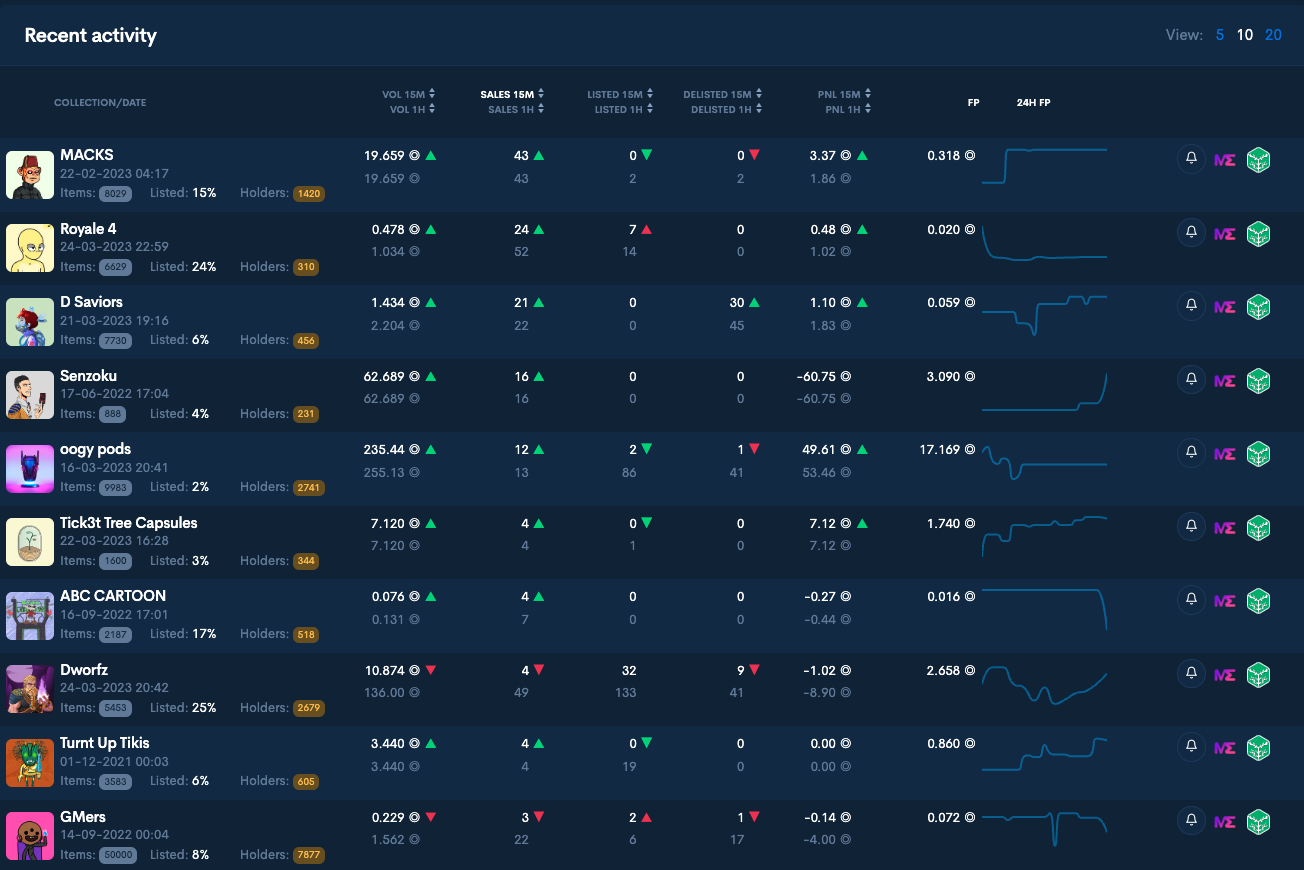
In the upper side, you can find the top collections with highest recent activity. You can sort them out yourself, using existing header. Also, you can set if you want to see top 5, 10 or 20.
On the lower left side, you can see Top performing collections. This showcases the collections with the most volume in the past 24H.
On the right side, you can see Latest collections which showcases the last collection listed. It's displaying the 10 last collections.
Available quick actions for all analytics sections are:
* Click on collection name - View in analytics - will open the page of selected collection;
* Click on - Collection profile picture - will add the collection to [**the Watchlist**](/analytics-homepage/the-watchlist);
* Click on - to set up FP notification on the selected collection;
* Click on - new tab will open directly to the MagicEden or Coral Cube collection page.
Once that you know what to analyze, let's discuss about the collection page.
If you want to check how it looks, you can watch the videos on Twitter or Youtube channel.
{% embed url="" %}
# First step - get notified
In order to be notified of the newest collection you need to turn the bell button to **green** on the [Scalp-Empire Analytics page](https://scalp-empire.com/analytics).
You will find a pop-up in the top-left corner of Latest collections section.
You will now be notified for every new listed launchpad or collection.
To make sure everything works fine, you need to check if your navigator is allowed to send notification:
If it still does not work, you will have to check on your operating system if the notifications are activated. You can find the detailed steps in our [Troubleshooting section.](/troubleshooting/notifications)
If you use [Solflare](https://solflare.com/) wallet (which you should because of it’s burner wallet with auto-approve functionality) you can now subscribe to floor price PUSH notifications. This way you never miss important developments on your investments while not at your PC.
### FloorPrice Notification
You can also use the notification system to be alerted once a specific collection's floorprice goes lower or higher than what you state. To do so, you need to access the collection page.

.png?alt=media)
You then need to click the notification bell on the bottom right, which will open this window.
Once you're here, all you have to do is setup the numbers, and the tool will alert you if FP goes above or under the thresholds.

You can manage notifications for all collections in the dedicated section in Settings
.png?alt=media)
Besides managing the notification from each collection page or from the watchlist, you can activate/deactivate/delete them in the Settings tab also.
You're now all set with the notification, let's move on to the analytics tutorial !
# The Watchlist
The concept is pretty simple: you can add collections to the **Watchlist** that will show up in the **Analytics home page** by using the sign that appears in multiple places: on the collection page, when you mouse over the collection picture in analytics, etc.\
Data shown is similar to the **Recent activity** section, but you also have the option to toggle extra charts for each collection. The collections in the **Watchlist** are sortable by their recent stats and also by collection name/date.
For the moment there is a limitation of **20 collections** in the Watchlist for Nestor holders and 5 for our collab partners.
**FP notifications are now available everywhere** and also configurable via the analytics homepage. You no longer need to keep the collection's analytics/sniping page open in order to receive FP alerts.
If you have at least one Scalp Empire page open you will receive notifications for all the collections you setup FP alerts for.
You can also manage all your alerts in Settings where you can quickly enable/disable/remove them .\
\
.png?alt=media)
**Multiple timeframes from Watchlist charts**\
\*\*\*\*We have added 2h / 4h / 6h / 12h /24h timeframes for the charts in the Watchlist section.\
Some collections don't have that much activity so you might want to keep an eye on a longer timeframe. On the other hand, new hyped collections have more activity so you might want to focus on the most recent one for a better view of the trend. \\
# Collection analytics & sniping page
As you can see, there is a lot of information to tackle here, so let’s get down to business .
# 1. Collection Header
Collection header contains the following info/ action buttons:\
\- - Add to watchlist button;\
\- Collection name;\
\- - Website, Twitter and Discord account links;\
\- - Notification manager. More details on how to get nofitifications - [**here.**](/analytics-homepage/get-notified)\
\- - This button is an important feature that will help you send a report if a **collection is missing some items** or if a **collection was revealed,** straight from the app.\
This will automate the re-scanning and re-ranking process without our manual intervention. See how to use it in [**Report an issue with the collection**](/troubleshooting/report-an-issue-with-the-collection)**.**
{% hint style="warning" %}
Website, Twitter and Discord account links are checked against Magic Eden data. If you observe that they are not updated after the rescan, please announce us so we can fix them.
{% endhint %}
# 2. Collection details
Always keep in mind the mint price. Floor price dropping under mint price will most of the time create panic sells, and great opportunities.
{% hint style="info" %}
What is floor price? It is the minimum price a collection’s NFTs are being sold for! It shows how the NFT holders are valuing them. A higher floor price usually indicates a higher valuation.
{% endhint %}
**Holder information displayed:**\
\- Holders - the total number of holders for a collection. Clicking the `Holders` label will show all holders and the number of items they own;\
\- NFT/holder - the average number of items owned per wallet.\
\
We are still working on labelling wallets as some collections use custodial staking and it appears as tho most of the items are owned by a single person when it's actually their staking wallet. Our [Snapshot tool](https://snapshot.scalp-empire.com/) can provide more accurate information about holders, staked and rented items, status of royalties peyments etc.
# 3. Volume and 24h Volume
This is the first indicator that will help you notice if there’s active trading done on this collection. Avoid low volatility collections while Scalping.
Fees - You need to pay attention to fees, as this is what will be taken out from a sell you are making. For example, selling at 4 SOL with 10% fees will result in a 3.6 SOL profit. Buying above 3.6 and selling at 4 is a **loss**.
Profit/loss - **PnL** information. For each NFT there is a list of sales. We compare each sale to the previous (or the mint price if it's the first sale) and calculate a profit or loss. For example, you bought it yesterday at 5 SOL and sold it today at 8 SOL. You generated **3 SOL profit** (minus the royalties and ME fee that we also take into account, we're not including them in the example to keep the math simple). Someone else then sells it tomorrow for 7 SOL, generating a **1 SOL loss** on the sale. We sum all those profits and that's the new stat that would be 2 SOL in this example.\
Sales speed is calculated based on the activity of the last 15 minutes.
# 4. Recent activity stats
**Recent activity** on the collection items, volume, sales, listed, delisted NFTs on 15m and 1 h, updated once a minute.
# 5. Live Floor Chart
This chart regroups key information : Current floor price, number of listed NFTs for this collection, and occuring sales. Combining all of them lets you understand what the current trend for this collection is, and identify opportunities for buying and selling.
By default, the chart only shows activity from the past 2 hours, but you can change it to show up to 24 hours but hovering your mouse over the chart.
# 6. Price histogram
This chart gives you the number of NFTs listed for a range of prices. This can help you understand if the floor is thin, and gives you an overall idea of the buying opportunities you can have.
# 7. Purchase mode
There are 3 main actions you can do from this page:\
\- [**Auto-buy** ](/collection-analytics-and-sniping-page/7.-purchase-mode/auto-buy)- filtered items under a set price in realtime;\
\- [**Sweep** ](/collection-analytics-and-sniping-page/7.-purchase-mode/sweep)- auto-buy the cheapest X filtered items;\
\- [**Bid** ](/collection-analytics-and-sniping-page/7.-purchase-mode/bid)- on the first X filtered items that you don't already have a bid on.
{% hint style="warning" %}
Attribute and rank filters apply to all purchasing modes. Make sure you set them before starting purchasing.
{% endhint %}
{% hint style="danger" %}
Be careful, once you set the attribute and rank filters on a collection, they remain active for all puchase modes. So if you want to snipe by some filters and bid by other filters, check them before clicking the action buttons.
{% endhint %}
If you don't have access on the tool and you want to see how it works, you can watch the videos in our twitter or youtube channel.
# Auto-buy
If you want to be competitive when sniping nowadays, you **need** an **auto-buy** functionality. Scalp Empire provides one.
Fill the "Limit price" field to set your **maximum price** for which you are ready to buy a NFT (matching the attributes/ranking you entered in the filters).
Fill the "Items to buy" field to set the maximum amount of NFTS you are ready to buy for this price range.
The "Min" button will autofill the "Limit price" field to 0.001 below the floor price of the currently displayed NFTs.
.png?alt=media)
Click the green "Start auto-buy" button to get the bot started, the red "Stop" button to stop it.
{% hint style="info" %}
In order to improve performance you can turn off (hide) the NFT images. This can be done for all collections by selecting the option No in Settings - **Load NFT images on Analytics / Sniping** or **simply click on** %20\(1\).png?alt=media).\
\
Also, sales dots are now removed by default on the sniping realtime chart to improve performance during sniping. They can still be enabled by clicking on the legend below the chart. FP and listed count are still updated in realtime.
{% endhint %}
If you want to snipe more collections in the same time you must open a different tab/collection. Sniping experience and success can be influenced by: your internet speed, local infrastructure incl. your PC performance, running apps and of course your client side RPC.
# Sweep
If you want to sweep the floor, this new functionality will help you. Nice and easy, just with few clicks!
Select the **Sweep** Purchase mode, set the attribute and rank filter you want, fill the number of items you want to buy.
{% hint style="warning" %}
Sweeping applies just to the listed items so what you see it's what you get :) .
{% endhint %}
The tool will automatically calculate the Total SOL value you need in order to sweep the floor, based on the criterias selected - rank and attributes.
.png?alt=media)
{% hint style="danger" %}
In order to get the best prices for your selection please **sort the list by price ascending. The tool will notify you when the sorting is made by other parameters.**\
%20\(1\).png?alt=media)\
If you click on price ascending, the tool will sort them for you by price.
{% endhint %}
Click on button, sign the transactions and that's it!
# Bid
With this new functionality you can make bids on listed NFTs.\
Select the **Bid** Purchase mode, set the attribute and rank filter you want. The list will update accordingly.\
You will see that the NFTs that match your filter will be highlighted with a green bar on the left side of the row. The listed NFTs that you have already placed a bid will be highlighted with orange bar.
.png?alt=media)
Next step is to fill the **number of items you want to bid on**. This can be max 20 for Nestor holders and 5 for subscription and collab users.
After you fill the number of items you must fill the **bid price**.
{% hint style="warning" %}
Bid price must not be lower than 50% of the most expensive NFT selected (ME constraint).
{% endhint %}
If the submitted bid price is not correct, a notification will appear in the **Minimum bid price** section . You can use the **Set min** action and the tool will calculate the correct Bid price.
{% hint style="info" %}
Bidding on ME implies holding the necessary funds in a ME escrow wallet. Existing funds will be used when a bid that you placed is accepted by the seller.
{% endhint %}
In **Funding wallet balance** section you can see the funds that were deposited in the ME escrow wallet by the wallet which you are currently connected to Scalp Empire.
You can fund the escrow wallet in the same time with placing the bid or separately, by filling the quantity of SOL that you want to deposit and click on Deposit only.

Depending on the funding wallet balance and the extra funds you want to deposit, in **Possible purchases** you can see the number of items you can purchase. This does not take into consideration existing bids and their value.
In the **Existing bids** section you can see the number of bids you have already placed that are still active and their total value in SOL.
{% hint style="danger" %}
In order to get the best options for your selection please **sort the list by price ascending. The tool will notify you when the sorting is made by other parameters.**\
\*\*\*\*%20\(3\).png?alt=media)\
If you click on price ascending, the tool will sort them for you by price.
{% endhint %}
Click on start bidding, sign the transaction (there will be 2 transactions to sign if you fund the escrow wallet too) and good luck!
You can also **update** individual bid prices and also **cancel** bids. A new **Manage bids** link will appear in the bid section of any collection **if you have active bids** on MagicEden.\
.png?alt=media) 
# 8. Rank filter
You can also filter the NFTs you want to see using their ranking. To display every listed NFT in the top 100, see below
.png?alt=media) .png?alt=media)
For Scalp ranking calculation we use the same algorithm as Moonrank.
{% hint style="danger" %}
Our ranking is statistical and based on attributes from the NFTs of the whole collection. It normally matches Moonrank and SolRarity ranking. There are some exceptions when project owners want a different ranking (example HowRare.is) and they also address the aforementioned ranking platforms to also update accordingly. Unfortunately we don't know about this so we can't update.
**Rank is always calculated but not always displayed.** For collections that are unrevealed, **we try to hide the ranking** as it's not relevant. This is the case now for collections that only have 1 attribute and the same value for that attribute.\
There are cases when NFT's have for example 3 attributes, even thought 2 have the same values for every NFT. Ranking is not final but not hidden either. When revealed, the collection will have totally different attributes.
Be careful, for unrevealed collections, Scalp rank and any other rank will not be accurate until mint finish and collection reveal.
If you know that a collection has been fully revealed, you can trigger a rescann using button and the steps in [**Report an issue with the collection**](/troubleshooting/report-an-issue-with-the-collection)**.**
{% endhint %}
# 9. Attributes filter
To filter the NFTs you want to display in the "Live feed" section, you got this attributes filter.
It is split in two modes.
The first mode is the "All attributes" mode. This filter will display every NFTS that match the combination of ALL attributes you selected (see below).
Here we display every NFT currently for sale with BOTH attributes selected.

.png?alt=media)
The second mode is the "Any attributes" mode. This filter will display every NFTs that match ANY of the attributes you entered in the filter (see below).
.png?alt=media) .png?alt=media)
**Attribute floor price** was added to the attribute filter dropdown. Being a database heavy process, FP only updates once every 30s or so.
# 10. Live feed - Listings
Here you will find every listed NFT that matches the filters you selected. You can on-chain quick buy one of them by clicking the green "Buy now" button.\
There is no need for a refresh, all the information is pushed from our backend to the app in realtime.\
You can sort them by Listed, Price, Rank and Edition.
Also, if you configure in [**Settings**](/i-have-a-nestor-now-what/check-your-settings) the Royalties threshold, will see under listing price the NFTs that have higher royalties than your acceptable %. This items will be skipped / cannot be bought using manual or auto-buy. sweep and bid.
# 11. Live activity feed - Sales
This will show every successful transaction for this collection. Top IDs are Buyers, bottom IDs are Sellers. If a buyer is shown as **green**, it means the wallet is accumulating. If a seller is shown as **orange**, it means the wallet is dumping. Remember, you can set the Whale threshold in [**Settings.**](/i-have-a-nestor-now-what/check-your-settings)\*\*\*\*\\
\*\*\*\*You can see the number of items owned next to each wallet in the sales list (if it owns more than 1) and if you click on the wallet, a new tab will open and show you the ME wallet page.\\
There are several informations that can help you identify buying and selling opportunities here :
* Volume -> The more transactions, the more volatile;
* Dumpers and Accumulators -> Can give you an idea of what whales are doing;
* NFTs bought -> You can visualize the NFT by clicking theicon, and identify the attributes that are being bought the most.
* Attribute floor prices and listed count
.png?alt=media)
# 12. Live big activity
Live big activity - The Live Big Activity is probably the most important tool on the trading page. It gives you an overview of what are the most pricy sales. This gives you an insight on what attributes are being bought at a higher price, and a better understanding of what to scalp for.
.png?alt=media)
# 13. Listed attributes
.png?alt=media)
In this box you have the name of the attributes, how many times it has been listed and its price.
Here, you can see the attributes that are being listed for 30% more than the current floor price. It helps you identify what is rare before Moonrank or Howrare is even available. Green attributes are listed one time, and are at least 2x the floor price for this attribute. Orange attributes are listed one time, and are at least 3x the floor price for this attribute.
Inspect the attributes **-** If you click on the attribute (previous picture), you’ll get a list of the NFT’s currently listed with this attribute, sorted by price. You can use the “Buy Now” button to snipe it.
# Portfolio
A new and improved layout, multi wallet support, PnL charts, operate on multiple collections and activity history.
The new portfolio now shows data from **all linked wallets** (via [Settings -> Secondary wallet](/i-have-a-nestor-now-what/set-up-secondary-wallets)) and is divided into 3 main sections:
1. The PnL chart with some stats;
2. Owned collections list;
3. NFT/Activity list.
All wallet links throughout SE now point to the portfolio page, so you can also view PnL and holdings for other wallets.
Let’s discuss each of the new portfolio sections.
## The PnL Chart
PnL is calculated from the difference between the last buy and sell price of an NFT and does not take into account marketplace fees or royalties. It will show daily PnL and number of sales from the past 30 days. Hover over the chart for more details.
The statistics section will display the total PnL and number of sales as well as some general stats about the items you hold.
## The collection list
Here you can view data about the collections you hold that SE knows about and indexes.
> ***You can toggle collections on/off and this will filter what is displayed in the NFT/activity list section**.*
Collections with a red background have been removed from SE for various reasons (either we can’t get the proper amount of items on-chain or it has broken data, it’s no longer being traded, rugged etc.)
1. Filter collections by name, hide or show all collections;
2. Toggle individual collections on/off;
3. Select one collection;
4. Go to collection page;
5. Number of listed and total NFTs from that collection.
## The NFT/activity list
This section will display either a list of NFTs or the last 100 activities (list/delist/buy/sell) **based on the current selection of collections**. You can switch between the two lists by using the corresponding toggles.
### The NFT list
1. Filter NFTs by name;
2. Toggle between NFT list and activity list;
3. Show/hide all wallets;
4. Perform actions on selected NFTs;
5. Clicking on the NFT image will select/deselect it. You will only able to select NFTs in the connected wallet;
6. Perform actions on individual NFTs;
7. Wallet containing the NFT if not in currently connected wallet.
### The activity list
Will display the last 100 activities performed on the selected collections and filtered by activity type. **If no collections are selected, it will show activities even for collections you do not currently own anymore**.
1. Switch to NFT list;
2. Show/hide all wallets;
3. Filter by activity type;
4. Activity list with links to explorers.
\\
Our portfolio has been improved with new functionalities that will help you both have an overview of your assets and also:
You can perform the following actions on selected NFTs:\
\- **list/delist** your NFT's on Tensor, Hyperspace, Magic Eden, Coral Cube and Yawww. More about how to do this you can find in the [**Listing** ](/listing)chapter;\
\- **update price** (including bulk) for your listed NFTs;\
\- **transfer (including bulk transfer)** your NFTs to another wallet. One of the benefits of using Scalp Empire for bulk transfer is that **empty source accounts are automatically closed** so you don't need to manually close them on other dAPPs;\
\- **burn (including bulk burn) NFTs.** You can get rid of those NFTs that have no value anymore and just take up space in your wallet. The full burn will not only get back your SOL locked up as rent but also the rent from the metadata account (\~ 0.01 SOL/NFT).
Remember, if you don't want to show details on your wallet, you can modify the privacy mode in [**settings.**](/i-have-a-nestor-now-what/check-your-settings)\*\*\*\*
# Listing
Sniping and Listing come together when we talk about trading. That's why we've included in the portfolio section the possibility to list your NFT directly from Scalp Empire.\
Let's see how you can do that!
First, access the [**Portfolio**](/portfolio) where you will find all the NFT's that you have in the wallet connected with Scalp Empire.

You can list just a NFT from a collection or you can list multiple / all NFTs from that collection. How will you do that? You have few options, see which one is more suitable for you.\
Use the available info in order to make the best choices of listing price. Do not forget that clicking on you have access on your NFT details, including sales history.\
%20\(2\).png?alt=media)
### **List 1 NFT**
Select the NFT you want to list by clicking on NFT Name/Picture (1) and than click on "List 1 Item" (2).

Or click on icon at the right end of the row.
Both this actions will open a pop-up that will allow you to set the listing price and select the marketplace where you want to list it.
By default, the list price is set to Break Even value. After you set the price, click on preffered marketplace and your NFT will be listed.
### **List multiple NFTs**
{% hint style="danger" %}
Multiple listing is charged based on the listing price of each NFT that you want to list. See [**Listing fees**](/listing/listing-fees) chapter for more details
{% endhint %}
If you want to list multiple NFTs you have the following selection options:\
\- click on each NFT name/image from the collection (with this option you will list just the NFTs you want from the list)\
\- or click on the number in the left side of the collection name (this will select for listing all the NFTs from the list).

Than click on "List x items" and a pop-up will open.
In this window you can set individual listing prices for each of the selected NFTs or you can set a unique price for all .\
After you fill up this fields, just click on one of the marketplaces.\
Multiple listing is charged based on the listing price of each NFT that you want to list. That's why, an additional confirmation pop-up will appear.\
.png?alt=media)
You can find more about [**listing fees**](/listing/listing-fees) in dedicated chapter.
### Delist NFTs
You can delist your NFTs following the same steps as per listing. Select your NFT and click on.png?alt=media) icon.\
Confirm the operation in the pop-up that appears.
.png?alt=media)
### **Update listed NFT'S**
You can now update the listing price on one or multiple NFTs per collection.\
The process is similar to listing, just access your Portfolio and:\
\- click on the NFT (if you want to update the price just for one NFT), or\
\- select multiple NFTs by clicking on each one, or\
\- click on the number from the left side of the collection name in order to select/deselect all.

Click on Update Items and you can set:\
\- a new listing price for all NFTs, or\
\- a different listing price for each NFT.
.png?alt=media)
Click on Update and your NFTs listing prices will be updated on the marketplaces where they are listed.
{% hint style="danger" %}
Multiple listing update is charged based on the listing price of each NFT that you want to update. See [**Listing fees**](/listing/listing-fees) chapter for more details.\
Single listing update is free.
{% endhint %}
# Listing fees
{% hint style="danger" %}
Multiple listing / update is charged based on the listing price of each NFT that you want to list / update.\
Single listing / update is free.
{% endhint %}
So, if you choose to list / update multiple NFTs from a collection at the same time, you will be charged according to the following fees:
**If you are a Nestor holder or you use Nestor through Adoption program :**\
\- If the NFT list price is <= 0.5 SOL you will pay 0.0005 SOL / listed or updated NFT\
\- If the NFT list price is > 0.5 SOL you will pay 0.001 SOL / listed or updated NFT\
\
**If you use Scalp through a Collab:**\
**-** If the NFT list price is <= 0.5 SOL you will pay 0.001 SOL / listed or updated NFT\
\- If the NFT list price is > 0.5 SOL you will pay 0.002 SOL / listed or updated NFT.
There are **no fees** for bulk list and bulk update on Hyperspace. Only **1% marketplace fees** instead of 2% like everyone else.
# FFF Sniper
{% hint style="danger" %} **Disclaimer**
Our tools are designed to help you trade NFTs and tokens quickly and efficiently.
We would not be held responsible for any trade going wrong.
This guide aims to give you knowledge on how to use the tools, but also on how to apply it into a scalping session.
Read carefully !
{% endhint %}
This chapter of our documentation is dedicated to FFF analytics and sniping functionalities. Why implementing this functionalities? Because, as our statement is, we want that our tool to be that place where you can find all you need for trading.
{% hint style="warning" %}
First important info that you need to consider is that this functionality is available just for Nestor holders and for Nestor's adopters (you can find details about Adoption program [**here**](https://github.com/kind3r/scalp-gitbook/blob/main/fff-sniper/broken-reference/README.md)).
{% endhint %}
Now we can go through what this module offers.
First, let's talk about the FFF homepage. Here you can find a list of top 10 tokens.
You can sort the tokens by:\
\- selecting 15 minutes or 1 hour on one of the following:\
\- volume;\
\- sales;\
\- listed;\
\- delisted.
Also, as for NFTs, you can use the search function to find a token that is not appearing in the list. You can search by name or address.
Let's get into details now and see how it works.
# How to use FFF Sniper
**1. Token details** - You can find here the usual information about tokens:\
\- Floor price;\
\- Listed tokens number;\
\- Holders - number of unique token holders.\
\- Volume, sales, listed and delisted information
**2. Live Floor Chart** - This chart regroups key information, similar with the one's in NFT Analytics & Sniping:\
\- current floor price;\
\- number of listed tokens;\
\- occuring sales.\
In addition, we've included the Sales candles which show the number of sales on the timeline.\
Combining all of them lets you understand what the current trend for the token and helps you identify opportunities for buying and selling.
**3. Sales History**\
This will show every successful transaction for this token and details about price per token, quantity, transaction time, buyer and seller.\
Similar to NFTs available data, you can access older transactions by clicking History where you can find also the extended chart that contains all the data listed above.
**4. Buy & Auto-buy**\
Most important functionality to document here for FFF, for sure.\
How it works? Similar with NFTsSniping Auto buy but with few specifics.
{% hint style="warning" %}
First, the difference is that for tokens we don't have attributes or ranks and also that we can have multiple tokens available in the same sale (quantity >1).
{% endhint %}
Let's talk about two special use cases that you must keep in mind.
**1st use case:** you don't want to use the sniper, just use the simply buy button.\
For this you must always remember to fill the number of the tokens you want to buy in "Items to buy". If not, you'll buy just one.\
%20\(1\)%20\(2\).png?alt=media)
The tool will highlight the listings that are compatible with your settings and deactivate the others. This thing you must keep in mind for the next use case too.
**2nd use case:** if you want to sweep the floor and the items you want to buy is larger than any maximum quantity listed, the sniper will buy from all the available ones, in the limit price you have setted (price per token).\
Next steps are the usual ones, approve transaction in your wallet and verify if the transaction was succesfull and you have received your tokens.\
\
If you need help or you have recommendations for improving our documentation, please access our [**discord server**](https://discord.gg/scalpempire).
# FAQ & Troubleshooting
You can find here responses to frecquent questions & issues received from Scalp Empire community.
If you cannot find the answers here, feel free to adress them on discord in our public [**support channel.**](https://discord.com/channels/891444210731991130/1028686804381093960)
# Notifications
In order to be notified of the newest collection you need to turn the bell button to **green** on the [Scalp-Empire Analytics page](https://scalp-empire.com/analytics).\
You will find a pop-up in the top-left corner of Latest collections section.\
To make sure everything works fine, you need to check if your navigator is allowed to send notification:
If it still does not work, you will have to check on your operating system if the notifications are activated.
* Open the notification center in windows (Parameters > Notifications)

### FloorPrice Notification
You can also use the notification system to be alerted once a specific collection's floorprice goes lower or higher than what you state. To do so, you need to access collection analytics page.
.png?alt=media)
You then need to click the notification button, which will open this window
.png?alt=media)
Once you're here, all you have to do is setup the numbers, and the tool will alert you if FP goes above or under the thresholds.
.png?alt=media)
If you are still having issues after applying these steps please contact us on our [**discord support channel.**](https://discord.com/channels/891444210731991130/1028686804381093960)
# Accesibility & Data Display
### No data update or shown at all
If you're getting this error, make sure the time on your PC is properly setup. You can check [**https://time.is/**](https://time.is/) if your PC has the right time or not.\
Scalp is using time sensitive encryption to communicate with the backend and it seems that this incorrect time issue started to be more frequent as our user base grows.
**We have implemented also a warning popup in case your device time has an offset larger than 15s** versus the actual time and prompts you to fix it.
.png?alt=media)
### Blank screen on analytics
Right click on the page and click **Inspect** - In the newly open Developer console go to the **Application** tab then **Storage** - Check all the boxes like in the screenshot - Click **Clear site data** - Close Developer console and reload the page.\
.png?alt=media)
### Page stuck on loading wallet
Check your RPC in settings and verify if you have setted up our custom RPC. \
Check your browser extensions by disabling them one by one, if you have CORS that's probably the culprit.\
Also, try a wallet cleanup using **Wallet cleanup tool**: .
### Browsers
Scalp Empire is supported by Brave, Chrome, Edge.
# Sniping
### **Sniping setup reset**
Your PC needs to remain on in order for sniping to work. If your computer is shut down or the operationg system is configured to enter in sleep mode, the app will stop running and so will the sniping.
# Performance
First thing that you have to check when observing performance issues is to verify Solana Network status. This is shown in the upper right corner of the application, in the wallet box. Red, of course, is bad. You can check it too here: mainnet.
Also, you can check you RPC, if you are not using the default one.
# Report an issue with the collection
Sometimes, due to different causes, you may find some issues related to a collection:\
\- the total number of items in the collection does not match the project's advertised number of items;\
\- the items in the collection have been revealed or updated and data shown is not up-to-date.\
\
Now you can use this Flag button and trigger by yourself, straight from the app, a report if a **collection is missing some items** or if a **collection was revealed**.
\
This will automate the re-scanning and re-raking process without our manual intervention.
.png?alt=media)
{% hint style="warning" %}
Make sure you double check your information prior to sending a report. Clearing cache in [settings](https://www.scalp-empire.com/settings) is a great way to make sure that you are not using cached old data.\
\\
{% endhint %}
# If all else fails
Try the following:
\- Right click on the page and click **Inspect**
\- In the newly open Developer console go to the **Application** tab then **Storage**
\- Check all the boxes like in the screenshot
\- Click **Clear site data**
\- Close Developer console and reload the page.

# Contact & more details
**Scalp Empire Official links**
* Scalp Empire tool link -
* Twitter
* Discord
* Medium
* Documentation link:
For troubleshooting please access [**Scalp Empire discord server**](https://discord.gg/scalpempire) - Support channel.
.png?alt=media)
 **🔗丨**[**official-links**](https://discord.gg/scalpempire) for a list of marketplaces where you can grab one or directly click on [**Hyperspace**](https://hyperspace.xyz/), [**Magic Eden**](https://magiceden.io/marketplace/scalp_empire_nestor_edition) or [Tensor](https://www.tensor.trade/trade/scalp_empire_nestor_edition).\\
# I have a Nestor, now what?
**Congratulations & welcome to our community!**
First step, finish reading this documentation. It will help you understand our tool.
Second, if you didn't yet, join our [**discord server**](https://discord.gg/scalpempire)**.** Do not forget to [**accept the rules**](https://discord.gg/scalpempire) and verify on [#matrica](https://discord.com/channels/891444210731991130/1177271638711074896) in order to have access to dedicated channels.
Last but not least, access [**Scalp Empire**](https://www.scalp-empire.com/)**,** connect your wallet (Ledger, Solflare or Phantom) and start your adventure in Nestor's in-between realms.

# Check your settings
**🔗丨**[**official-links**](https://discord.gg/scalpempire) for a list of marketplaces where you can grab one or directly click on [**Hyperspace**](https://hyperspace.xyz/), [**Magic Eden**](https://magiceden.io/marketplace/scalp_empire_nestor_edition) or [Tensor](https://www.tensor.trade/trade/scalp_empire_nestor_edition).\\
# I have a Nestor, now what?
**Congratulations & welcome to our community!**
First step, finish reading this documentation. It will help you understand our tool.
Second, if you didn't yet, join our [**discord server**](https://discord.gg/scalpempire)**.** Do not forget to [**accept the rules**](https://discord.gg/scalpempire) and verify on [#matrica](https://discord.com/channels/891444210731991130/1177271638711074896) in order to have access to dedicated channels.
Last but not least, access [**Scalp Empire**](https://www.scalp-empire.com/)**,** connect your wallet (Ledger, Solflare or Phantom) and start your adventure in Nestor's in-between realms.

# Check your settings
%20(3).png?alt=media)
 You can now use Scalp Empire using another wallet than the one you have Nestor or the subscription pass in it.
.svg?alt=media) **Save (write down) and confirm** your new seed phrase.\
%20\(1\)%20\(4\).png?alt=media)
Create a **new password for your new wallet,** confirm it and you are ready to go.\
.png?alt=media)
Now you can go to [Create burner wallet and setup auto-approve](/i-have-a-nestor-now-what/prepare-wallet-for-auto-buy/auto-approve-solflare/create-burner-wallet-and-setup-auto-approve) and setup your new burner.
# Import from Phantom seed phrase
If you want to **use your existing wallets and import them into Solflare**, you can do that by selecting the option "**Already have your recovery phrase**"
**Save (write down) and confirm** your new seed phrase.\
%20\(1\)%20\(4\).png?alt=media)
Create a **new password for your new wallet,** confirm it and you are ready to go.\
.png?alt=media)
Now you can go to [Create burner wallet and setup auto-approve](/i-have-a-nestor-now-what/prepare-wallet-for-auto-buy/auto-approve-solflare/create-burner-wallet-and-setup-auto-approve) and setup your new burner.
# Import from Phantom seed phrase
If you want to **use your existing wallets and import them into Solflare**, you can do that by selecting the option "**Already have your recovery phrase**"
.svg?alt=media) **Import the seed phrase.**
**Create a new password for your new wallet**, confirm it and you are ready to go.\
.png?alt=media)
Now you can go to [Create burner wallet and setup auto-approve](/i-have-a-nestor-now-what/prepare-wallet-for-auto-buy/auto-approve-solflare/create-burner-wallet-and-setup-auto-approve) and setup your new burner.
# Import Ledger accounts
If you already use Solflare for your Ledger wallets (you just manage them through Solflare without having a dedicated Solflare wallet) you will not have access to the new burner functionality from the same user account without doing some steps:
You must first reset your Solflare wallet by logging out. For that, go to Solflare wallet, Security and click Log out. Before that, make sure that you saved your wallet addresses so it will be easy to recognize them when you will have to import them back.\
\
**Import the seed phrase.**
**Create a new password for your new wallet**, confirm it and you are ready to go.\
.png?alt=media)
Now you can go to [Create burner wallet and setup auto-approve](/i-have-a-nestor-now-what/prepare-wallet-for-auto-buy/auto-approve-solflare/create-burner-wallet-and-setup-auto-approve) and setup your new burner.
# Import Ledger accounts
If you already use Solflare for your Ledger wallets (you just manage them through Solflare without having a dedicated Solflare wallet) you will not have access to the new burner functionality from the same user account without doing some steps:
You must first reset your Solflare wallet by logging out. For that, go to Solflare wallet, Security and click Log out. Before that, make sure that you saved your wallet addresses so it will be easy to recognize them when you will have to import them back.\
\ .png?alt=media) {% hint style="danger" %}
Be careful! you must do this only if you don't have a Solflare wallet and the only existing wallets you can see are the Solflare ones.
{% endhint %}
After logging out, follow the steps in order to [Create a new Solflare wallet](/i-have-a-nestor-now-what/prepare-wallet-for-auto-buy/auto-approve-solflare/create-a-new-solflare-wallet).
The next step is adding back your ledger wallets . Click on the new created Main account and then on Import a new wallet.\
%20\(2\).png?alt=media) %20\(7\).png?alt=media)
Click on Import ledger wallet and after that connect your ledger to your computer and select your ledger wallets.\
.png?alt=media) .png?alt=media)
Now you have all your ledger wallets available and you can go further and [Create burner wallet and setup auto-approve](/i-have-a-nestor-now-what/prepare-wallet-for-auto-buy/auto-approve-solflare/create-burner-wallet-and-setup-auto-approve).\\
{% hint style="danger" %}
Be careful! you must do this only if you don't have a Solflare wallet and the only existing wallets you can see are the Solflare ones.
{% endhint %}
After logging out, follow the steps in order to [Create a new Solflare wallet](/i-have-a-nestor-now-what/prepare-wallet-for-auto-buy/auto-approve-solflare/create-a-new-solflare-wallet).
The next step is adding back your ledger wallets . Click on the new created Main account and then on Import a new wallet.\
%20\(2\).png?alt=media) %20\(7\).png?alt=media)
Click on Import ledger wallet and after that connect your ledger to your computer and select your ledger wallets.\
.png?alt=media) .png?alt=media)
Now you have all your ledger wallets available and you can go further and [Create burner wallet and setup auto-approve](/i-have-a-nestor-now-what/prepare-wallet-for-auto-buy/auto-approve-solflare/create-burner-wallet-and-setup-auto-approve).\\
.png?alt=media)
.png?alt=media)
.png?alt=media)
 icon and than on
icon and than on %20(3).png?alt=media) Connections.\
%20\(2\).png?alt=media) .png?alt=media)
Check Auto approve and Happy sniping! :)
You can find more details about Exodus and its functionalities [**here**](https://support.exodus.com/category/6-faq).
Also, you can find on our discord server some [**tips & tricks**](https://discord.com/channels/891444210731991130/1081300863617876068) on using it.
# Analytics homepage
{% hint style="warning" %} **Disclaimer**
Our tools are designed to help you trade NFTs quickly and efficiently.\
\
We would not be held responsible for any trade going wrong.\
This guide aims to give you knowledge on how to use the tools, but also on how to apply it into a scalping session.\
Read carefully !\
\
In order to use our analytical tool to the best, you need to **follow all of the steps** listed in this section. Not doing so will expose you to some troubles, and could lead to a **loss of SOL**.
{% endhint %}
We will discuss every feature available in the Analytics part of our website, as well as basic strategies you can use at your advantage while trading NFTs.
First, you need to keep in mind that trading NFTs is all about gathering information before others. The quicker you can identify what is rare, the quicker you can scalp NFTs being sold at a low price, and resell them later.
We will begin this tutorial with the [Analytics page](https://scalp-empire.com/analytics).
Connections.\
%20\(2\).png?alt=media) .png?alt=media)
Check Auto approve and Happy sniping! :)
You can find more details about Exodus and its functionalities [**here**](https://support.exodus.com/category/6-faq).
Also, you can find on our discord server some [**tips & tricks**](https://discord.com/channels/891444210731991130/1081300863617876068) on using it.
# Analytics homepage
{% hint style="warning" %} **Disclaimer**
Our tools are designed to help you trade NFTs quickly and efficiently.\
\
We would not be held responsible for any trade going wrong.\
This guide aims to give you knowledge on how to use the tools, but also on how to apply it into a scalping session.\
Read carefully !\
\
In order to use our analytical tool to the best, you need to **follow all of the steps** listed in this section. Not doing so will expose you to some troubles, and could lead to a **loss of SOL**.
{% endhint %}
We will discuss every feature available in the Analytics part of our website, as well as basic strategies you can use at your advantage while trading NFTs.
First, you need to keep in mind that trading NFTs is all about gathering information before others. The quicker you can identify what is rare, the quicker you can scalp NFTs being sold at a low price, and resell them later.
We will begin this tutorial with the [Analytics page](https://scalp-empire.com/analytics).
%20(4).png?alt=media) - Collection profile picture - will add the collection to [**the Watchlist**](/analytics-homepage/the-watchlist);
* Click on
- Collection profile picture - will add the collection to [**the Watchlist**](/analytics-homepage/the-watchlist);
* Click on .png?alt=media) - to set up FP notification on the selected collection;
* Click on
- to set up FP notification on the selected collection;
* Click on %20(5)%20(1).png?alt=media) - new tab will open directly to the MagicEden or Coral Cube collection page.
Once that you know what to analyze, let's discuss about the collection page.
If you want to check how it looks, you can watch the videos on Twitter or Youtube channel.
{% embed url="
- new tab will open directly to the MagicEden or Coral Cube collection page.
Once that you know what to analyze, let's discuss about the collection page.
If you want to check how it looks, you can watch the videos on Twitter or Youtube channel.
{% embed url=" You will now be notified for every new listed launchpad or collection.
To make sure everything works fine, you need to check if your navigator is allowed to send notification:
You will now be notified for every new listed launchpad or collection.
To make sure everything works fine, you need to check if your navigator is allowed to send notification:
.svg?alt=media) If it still does not work, you will have to check on your operating system if the notifications are activated. You can find the detailed steps in our [Troubleshooting section.](/troubleshooting/notifications)
If you use [Solflare](https://solflare.com/) wallet (which you should because of it’s burner wallet with auto-approve functionality) you can now subscribe to floor price PUSH notifications. This way you never miss important developments on your investments while not at your PC.
### FloorPrice Notification
You can also use the notification system to be alerted once a specific collection's floorprice goes lower or higher than what you state. To do so, you need to access the collection page.

.png?alt=media)
You then need to click the notification bell on the bottom right, which will open this window.
Once you're here, all you have to do is setup the numbers, and the tool will alert you if FP goes above or under the thresholds.

You can manage notifications for all collections in the dedicated section in Settings
.png?alt=media)
Besides managing the notification from each collection page or from the watchlist, you can activate/deactivate/delete them in the Settings tab also.
You're now all set with the notification, let's move on to the analytics tutorial !
# The Watchlist
The concept is pretty simple: you can add collections to the **Watchlist** that will show up in the **Analytics home page** by using the sign
If it still does not work, you will have to check on your operating system if the notifications are activated. You can find the detailed steps in our [Troubleshooting section.](/troubleshooting/notifications)
If you use [Solflare](https://solflare.com/) wallet (which you should because of it’s burner wallet with auto-approve functionality) you can now subscribe to floor price PUSH notifications. This way you never miss important developments on your investments while not at your PC.
### FloorPrice Notification
You can also use the notification system to be alerted once a specific collection's floorprice goes lower or higher than what you state. To do so, you need to access the collection page.

.png?alt=media)
You then need to click the notification bell on the bottom right, which will open this window.
Once you're here, all you have to do is setup the numbers, and the tool will alert you if FP goes above or under the thresholds.

You can manage notifications for all collections in the dedicated section in Settings
.png?alt=media)
Besides managing the notification from each collection page or from the watchlist, you can activate/deactivate/delete them in the Settings tab also.
You're now all set with the notification, let's move on to the analytics tutorial !
# The Watchlist
The concept is pretty simple: you can add collections to the **Watchlist** that will show up in the **Analytics home page** by using the sign .png?alt=media) that appears in multiple places: on the collection page, when you mouse over the collection picture in analytics, etc.\
Data shown is similar to the **Recent activity** section, but you also have the option to toggle extra charts for each collection. The collections in the **Watchlist** are sortable by their recent stats and also by collection name/date.
that appears in multiple places: on the collection page, when you mouse over the collection picture in analytics, etc.\
Data shown is similar to the **Recent activity** section, but you also have the option to toggle extra charts for each collection. The collections in the **Watchlist** are sortable by their recent stats and also by collection name/date.
.png?alt=media)
 .\
\
.png?alt=media)
**Multiple timeframes from Watchlist charts**\
\*\*\*\*We have added 2h / 4h / 6h / 12h /24h timeframes for the charts in the Watchlist section.\
Some collections don't have that much activity so you might want to keep an eye on a longer timeframe. On the other hand, new hyped collections have more activity so you might want to focus on the most recent one for a better view of the trend. \\
# Collection analytics & sniping page
.\
\
.png?alt=media)
**Multiple timeframes from Watchlist charts**\
\*\*\*\*We have added 2h / 4h / 6h / 12h /24h timeframes for the charts in the Watchlist section.\
Some collections don't have that much activity so you might want to keep an eye on a longer timeframe. On the other hand, new hyped collections have more activity so you might want to focus on the most recent one for a better view of the trend. \\
# Collection analytics & sniping page
 As you can see, there is a lot of information to tackle here, so let’s get down to business .
# 1. Collection Header
As you can see, there is a lot of information to tackle here, so let’s get down to business .
# 1. Collection Header
%20(2).png?alt=media)
 - Add to watchlist button;\
\- Collection name;\
\-
- Add to watchlist button;\
\- Collection name;\
\- .png?alt=media) - Website, Twitter and Discord account links;\
\-
- Website, Twitter and Discord account links;\
\- %20(1).png?alt=media) - Notification manager. More details on how to get nofitifications - [**here.**](/analytics-homepage/get-notified)\
\-
- Notification manager. More details on how to get nofitifications - [**here.**](/analytics-homepage/get-notified)\
\- .png?alt=media) - This button is an important feature that will help you send a report if a **collection is missing some items** or if a **collection was revealed,** straight from the app.\
This will automate the re-scanning and re-ranking process without our manual intervention. See how to use it in [**Report an issue with the collection**](/troubleshooting/report-an-issue-with-the-collection)**.**
{% hint style="warning" %}
Website, Twitter and Discord account links are checked against Magic Eden data. If you observe that they are not updated after the rescan, please announce us so we can fix them.
{% endhint %}
# 2. Collection details
- This button is an important feature that will help you send a report if a **collection is missing some items** or if a **collection was revealed,** straight from the app.\
This will automate the re-scanning and re-ranking process without our manual intervention. See how to use it in [**Report an issue with the collection**](/troubleshooting/report-an-issue-with-the-collection)**.**
{% hint style="warning" %}
Website, Twitter and Discord account links are checked against Magic Eden data. If you observe that they are not updated after the rescan, please announce us so we can fix them.
{% endhint %}
# 2. Collection details
.png?alt=media)
.png?alt=media)
.png?alt=media)
.png?alt=media)
.png?alt=media)
.png?alt=media)
 price ascending, the tool will sort them for you by price.
{% endhint %}
Click on
price ascending, the tool will sort them for you by price.
{% endhint %}
Click on .png?alt=media) button, sign the transactions and that's it!
# Bid
With this new functionality you can make bids on listed NFTs.\
Select the **Bid** Purchase mode, set the attribute and rank filter you want. The list will update accordingly.\
You will see that the NFTs that match your filter will be highlighted with a green bar on the left side of the row. The listed NFTs that you have already placed a bid will be highlighted with orange bar.
.png?alt=media)
Next step is to fill the **number of items you want to bid on**. This can be max 20 for Nestor holders and 5 for subscription and collab users.
After you fill the number of items you must fill the **bid price**.
{% hint style="warning" %}
Bid price must not be lower than 50% of the most expensive NFT selected (ME constraint).
{% endhint %}
If the submitted bid price is not correct, a notification will appear in the **Minimum bid price** section
button, sign the transactions and that's it!
# Bid
With this new functionality you can make bids on listed NFTs.\
Select the **Bid** Purchase mode, set the attribute and rank filter you want. The list will update accordingly.\
You will see that the NFTs that match your filter will be highlighted with a green bar on the left side of the row. The listed NFTs that you have already placed a bid will be highlighted with orange bar.
.png?alt=media)
Next step is to fill the **number of items you want to bid on**. This can be max 20 for Nestor holders and 5 for subscription and collab users.
After you fill the number of items you must fill the **bid price**.
{% hint style="warning" %}
Bid price must not be lower than 50% of the most expensive NFT selected (ME constraint).
{% endhint %}
If the submitted bid price is not correct, a notification will appear in the **Minimum bid price** section .png?alt=media) . You can use the **Set min** action and the tool will calculate the correct Bid price.
{% hint style="info" %}
Bidding on ME implies holding the necessary funds in a ME escrow wallet. Existing funds will be used when a bid that you placed is accepted by the seller.
{% endhint %}
In **Funding wallet balance** section you can see the funds that were deposited in the ME escrow wallet by the wallet which you are currently connected to Scalp Empire.
You can fund the escrow wallet in the same time with placing the bid or separately, by filling the quantity of SOL that you want to deposit and click on Deposit only.

Depending on the funding wallet balance and the extra funds you want to deposit, in **Possible purchases** you can see the number of items you can purchase. This does not take into consideration existing bids and their value.
In the **Existing bids** section you can see the number of bids you have already placed that are still active and their total value in SOL.
{% hint style="danger" %}
In order to get the best options for your selection please **sort the list by price ascending. The tool will notify you when the sorting is made by other parameters.**\
\*\*\*\*%20\(3\).png?alt=media)\
If you click on
. You can use the **Set min** action and the tool will calculate the correct Bid price.
{% hint style="info" %}
Bidding on ME implies holding the necessary funds in a ME escrow wallet. Existing funds will be used when a bid that you placed is accepted by the seller.
{% endhint %}
In **Funding wallet balance** section you can see the funds that were deposited in the ME escrow wallet by the wallet which you are currently connected to Scalp Empire.
You can fund the escrow wallet in the same time with placing the bid or separately, by filling the quantity of SOL that you want to deposit and click on Deposit only.

Depending on the funding wallet balance and the extra funds you want to deposit, in **Possible purchases** you can see the number of items you can purchase. This does not take into consideration existing bids and their value.
In the **Existing bids** section you can see the number of bids you have already placed that are still active and their total value in SOL.
{% hint style="danger" %}
In order to get the best options for your selection please **sort the list by price ascending. The tool will notify you when the sorting is made by other parameters.**\
\*\*\*\*%20\(3\).png?alt=media)\
If you click on .png?alt=media)
 button and the steps in [**Report an issue with the collection**](/troubleshooting/report-an-issue-with-the-collection)**.**
{% endhint %}
# 9. Attributes filter
button and the steps in [**Report an issue with the collection**](/troubleshooting/report-an-issue-with-the-collection)**.**
{% endhint %}
# 9. Attributes filter
.png?alt=media)
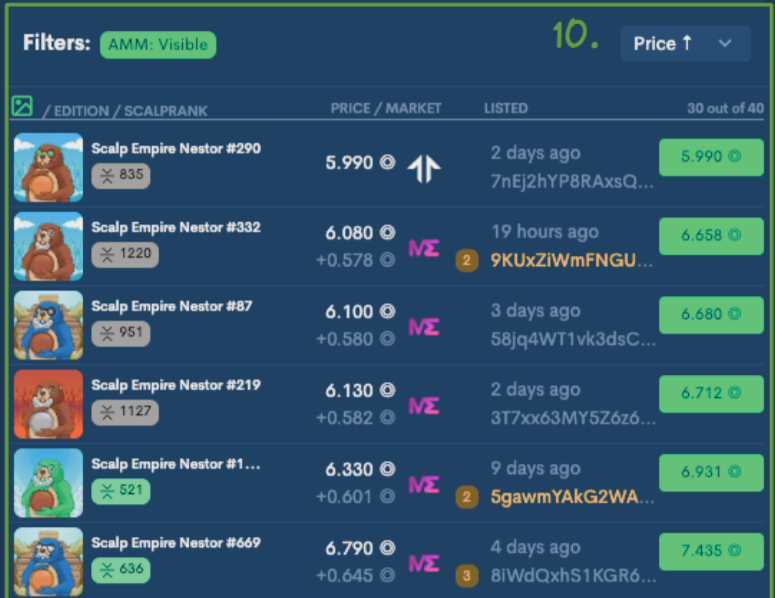
.png?alt=media)
.png?alt=media)
 icon, and identify the attributes that are being bought the most.
* Attribute floor prices and listed count
.png?alt=media)
# 12. Live big activity
icon, and identify the attributes that are being bought the most.
* Attribute floor prices and listed count
.png?alt=media)
# 12. Live big activity
.png?alt=media)
%20(7).png?alt=media)
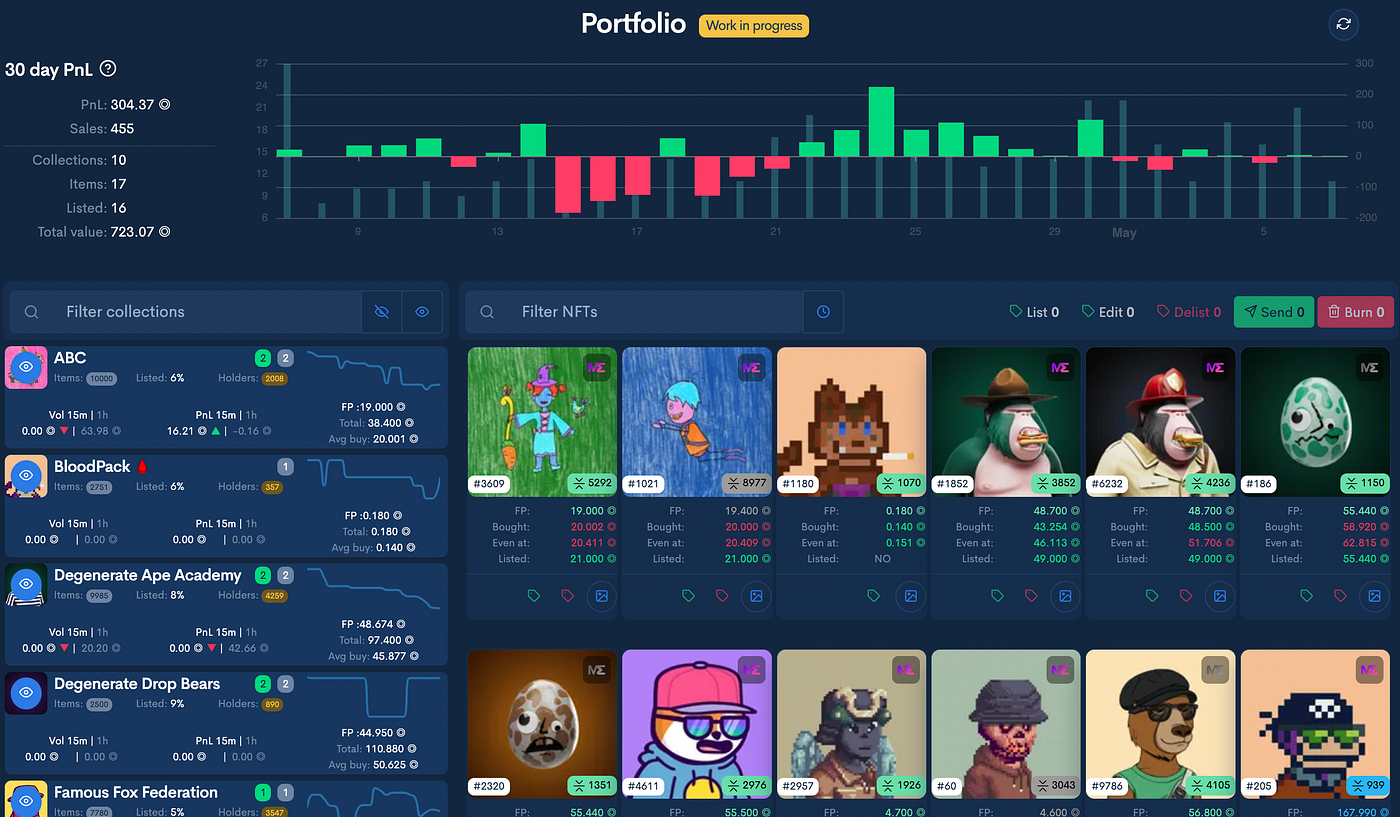
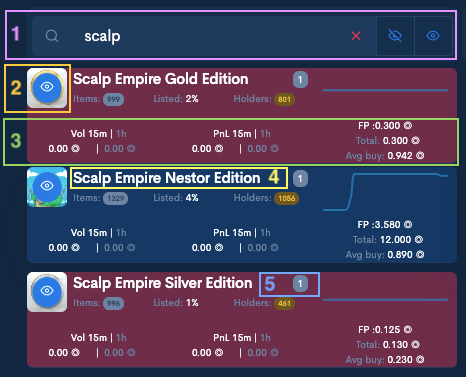

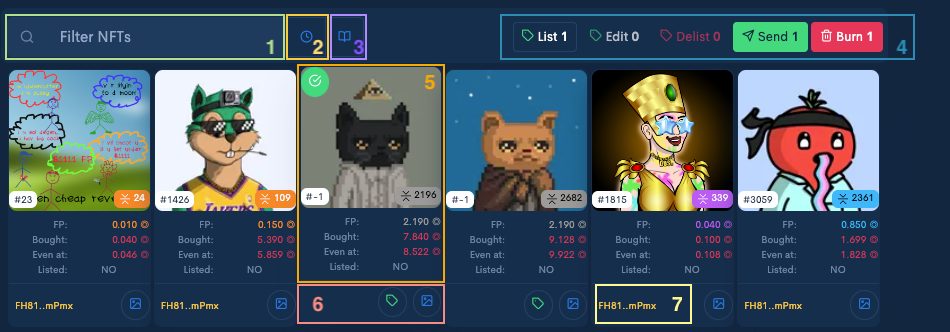
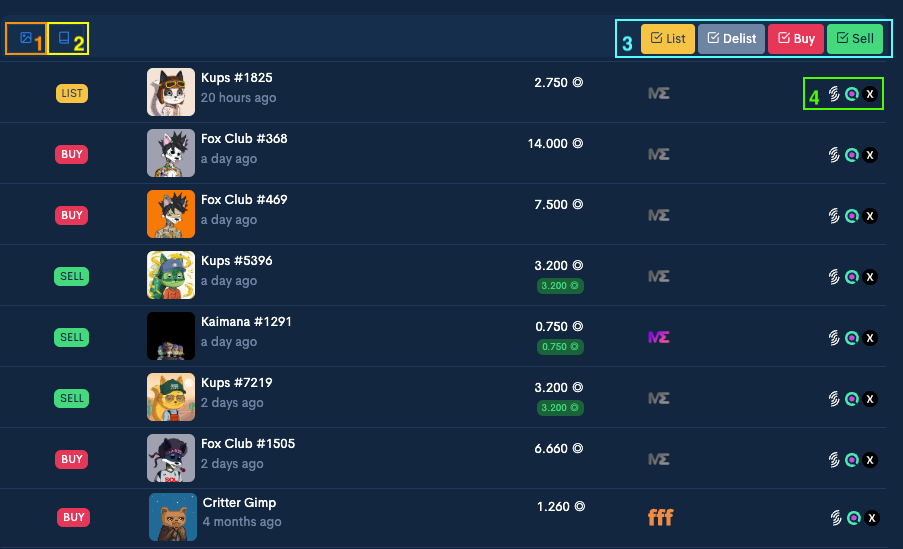
%20(2).png?alt=media) you have access on your NFT details, including sales history.\
%20\(2\).png?alt=media)
### **List 1 NFT**
Select the NFT you want to list by clicking on NFT Name/Picture (1) and than click on "List 1 Item" (2).

Or click on
you have access on your NFT details, including sales history.\
%20\(2\).png?alt=media)
### **List 1 NFT**
Select the NFT you want to list by clicking on NFT Name/Picture (1) and than click on "List 1 Item" (2).

Or click on  icon at the right end of the row.
Both this actions will open a pop-up that will allow you to set the listing price and select the marketplace where you want to list it.
icon at the right end of the row.
Both this actions will open a pop-up that will allow you to set the listing price and select the marketplace where you want to list it.
.png?alt=media)
.png?alt=media)
 and a pop-up will open.
and a pop-up will open.
.png?alt=media)
.png?alt=media)
.svg?alt=media) **1. Token details** - You can find here the usual information about tokens:\
\- Floor price;\
\- Listed tokens number;\
\- Holders - number of unique token holders.\
\- Volume, sales, listed and delisted information
**2. Live Floor Chart** - This chart regroups key information, similar with the one's in NFT Analytics & Sniping:\
\- current floor price;\
\- number of listed tokens;\
\- occuring sales.\
In addition, we've included the Sales candles which show the number of sales on the timeline.\
Combining all of them lets you understand what the current trend for the token and helps you identify opportunities for buying and selling.
**3. Sales History**\
This will show every successful transaction for this token and details about price per token, quantity, transaction time, buyer and seller.\
Similar to NFTs available data, you can access older transactions by clicking History where you can find also the extended chart that contains all the data listed above.
**1. Token details** - You can find here the usual information about tokens:\
\- Floor price;\
\- Listed tokens number;\
\- Holders - number of unique token holders.\
\- Volume, sales, listed and delisted information
**2. Live Floor Chart** - This chart regroups key information, similar with the one's in NFT Analytics & Sniping:\
\- current floor price;\
\- number of listed tokens;\
\- occuring sales.\
In addition, we've included the Sales candles which show the number of sales on the timeline.\
Combining all of them lets you understand what the current trend for the token and helps you identify opportunities for buying and selling.
**3. Sales History**\
This will show every successful transaction for this token and details about price per token, quantity, transaction time, buyer and seller.\
Similar to NFTs available data, you can access older transactions by clicking History where you can find also the extended chart that contains all the data listed above..png?alt=media) **4. Buy & Auto-buy**\
Most important functionality to document here for FFF, for sure.\
How it works? Similar with NFTsSniping Auto buy but with few specifics.
{% hint style="warning" %}
First, the difference is that for tokens we don't have attributes or ranks and also that we can have multiple tokens available in the same sale (quantity >1).
{% endhint %}
Let's talk about two special use cases that you must keep in mind.
**1st use case:** you don't want to use the sniper, just use the simply buy button.\
For this you must always remember to fill the number of the tokens you want to buy in "Items to buy". If not, you'll buy just one.\
%20\(1\)%20\(2\).png?alt=media)
The tool will highlight the listings that are compatible with your settings and deactivate the others. This thing you must keep in mind for the next use case too.
**2nd use case:** if you want to sweep the floor and the items you want to buy is larger than any maximum quantity listed, the sniper will buy from all the available ones, in the limit price you have setted (price per token).\
**4. Buy & Auto-buy**\
Most important functionality to document here for FFF, for sure.\
How it works? Similar with NFTsSniping Auto buy but with few specifics.
{% hint style="warning" %}
First, the difference is that for tokens we don't have attributes or ranks and also that we can have multiple tokens available in the same sale (quantity >1).
{% endhint %}
Let's talk about two special use cases that you must keep in mind.
**1st use case:** you don't want to use the sniper, just use the simply buy button.\
For this you must always remember to fill the number of the tokens you want to buy in "Items to buy". If not, you'll buy just one.\
%20\(1\)%20\(2\).png?alt=media)
The tool will highlight the listings that are compatible with your settings and deactivate the others. This thing you must keep in mind for the next use case too.
**2nd use case:** if you want to sweep the floor and the items you want to buy is larger than any maximum quantity listed, the sniper will buy from all the available ones, in the limit price you have setted (price per token).\ .png?alt=media) Next steps are the usual ones, approve transaction in your wallet and verify if the transaction was succesfull and you have received your tokens.\
\
If you need help or you have recommendations for improving our documentation, please access our [**discord server**](https://discord.gg/scalpempire).
# FAQ & Troubleshooting
You can find here responses to frecquent questions & issues received from Scalp Empire community.
If you cannot find the answers here, feel free to adress them on discord in our public [**support channel.**](https://discord.com/channels/891444210731991130/1028686804381093960)
# Notifications
In order to be notified of the newest collection you need to turn the bell button to **green** on the [Scalp-Empire Analytics page](https://scalp-empire.com/analytics).\
You will find a pop-up in the top-left corner of Latest collections section.\
To make sure everything works fine, you need to check if your navigator is allowed to send notification:
Next steps are the usual ones, approve transaction in your wallet and verify if the transaction was succesfull and you have received your tokens.\
\
If you need help or you have recommendations for improving our documentation, please access our [**discord server**](https://discord.gg/scalpempire).
# FAQ & Troubleshooting
You can find here responses to frecquent questions & issues received from Scalp Empire community.
If you cannot find the answers here, feel free to adress them on discord in our public [**support channel.**](https://discord.com/channels/891444210731991130/1028686804381093960)
# Notifications
In order to be notified of the newest collection you need to turn the bell button to **green** on the [Scalp-Empire Analytics page](https://scalp-empire.com/analytics).\
You will find a pop-up in the top-left corner of Latest collections section.\
To make sure everything works fine, you need to check if your navigator is allowed to send notification:
.png?alt=media) and trigger by yourself, straight from the app, a report if a **collection is missing some items** or if a **collection was revealed**.
\
This will automate the re-scanning and re-raking process without our manual intervention.
.png?alt=media)
{% hint style="warning" %}
Make sure you double check your information prior to sending a report. Clearing cache in [settings](https://www.scalp-empire.com/settings) is a great way to make sure that you are not using cached old data.\
\\
{% endhint %}
# If all else fails
Try the following:
\- Right click on the page and click **Inspect**
\- In the newly open Developer console go to the **Application** tab then **Storage**
\- Check all the boxes like in the screenshot
\- Click **Clear site data**
\- Close Developer console and reload the page.

# Contact & more details
**Scalp Empire Official links**
* Scalp Empire tool link -
and trigger by yourself, straight from the app, a report if a **collection is missing some items** or if a **collection was revealed**.
\
This will automate the re-scanning and re-raking process without our manual intervention.
.png?alt=media)
{% hint style="warning" %}
Make sure you double check your information prior to sending a report. Clearing cache in [settings](https://www.scalp-empire.com/settings) is a great way to make sure that you are not using cached old data.\
\\
{% endhint %}
# If all else fails
Try the following:
\- Right click on the page and click **Inspect**
\- In the newly open Developer console go to the **Application** tab then **Storage**
\- Check all the boxes like in the screenshot
\- Click **Clear site data**
\- Close Developer console and reload the page.

# Contact & more details
**Scalp Empire Official links**
* Scalp Empire tool link -